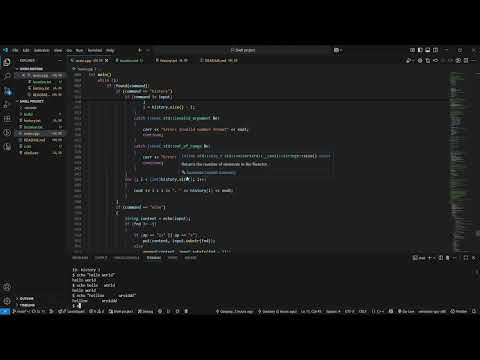
A featured, Windows-compatible shell with advanced interactive capabilities, tab completion, command history, and comprehensive I/O redirection support.
Built from scratch in C++ using native Windows APIs for optimal performance and user experience.
- Custom Readline Implementation: Built from scratch using Windows APIs (
_getch()) for immediate key response - Full Cursor Navigation: Move cursor freely within command line using arrow keys
- Advanced Line Editing: Insert, delete, and modify text at any cursor position
- Persistent Command History: Commands saved to
history.txtand restored between sessions
- Command Completion: Auto-complete built-in commands and executables in PATH
- File/Directory Completion: Complete filenames and directory names in current directory
- Smart Completion Logic:
- Single match: Automatically completes
- Multiple matches: Double-tab shows all options
- No matches: System beep notification
- Context-Aware: Completes commands at start of line, files/directories elsewhere
- Arrow Key Navigation:
- ↑/↓: Navigate through command history
- ←/→: Move cursor within current line
- Advanced History Features:
history: Show all commands with line numbershistory n: Show last n commands- History persistence across sessions
- Smart history backup during navigation
| Command | Description | Advanced Features |
|---|---|---|
echo <text> |
Print text to output | Quote parsing, escape sequences, I/O redirection |
pwd |
Print working directory | Windows path format support |
cd <path> |
Change directory | Home directory (~) support via USERPROFILE |
ls [path] |
List directory contents | Hidden file filtering, I/O redirection |
cat <file> |
Display file contents | Error handling, I/O redirection |
type <cmd> |
Show command information | Built-in vs external command detection |
history [n] |
Show command history | Optional line count, persistent storage |
exit [0] |
Exit shell | Clean shutdown |
- Output Redirection:
>,>>,1>,1>> - Intelligent Parsing: Handles redirection within echo commands
- File Operations: Create, overwrite, and append to files
- Error Handling: Graceful handling of file access errors
- Path Handling: Windows backslash separators and drive letters
- Environment Variables:
USERPROFILEfor home directory,PATHfor executables - Console APIs: Native Windows console functions for optimal performance
- File Extensions: Automatic
.exeextension handling for executables
| Key | Action |
|---|---|
Enter |
Execute command |
Tab |
Auto-complete command/filename |
Tab Tab |
Show all completion options |
↑ |
Previous command in history |
↓ |
Next command in history |
← |
Move cursor left |
→ |
Move cursor right |
Backspace |
Delete character before cursor |
Delete |
Delete character after cursor |
Ctrl+D |
Exit shell |
Before installing the project locally, ensure you have the following:
- Windows 10/11 (64-bit recommended)
- MinGW-w64 or Microsoft Visual Studio (with C++ compiler)
- Git (for cloning the repository)
- PowerShell or Command Prompt
# 1. Clone the repository to your local machine
git clone https://github.com/Omar123098/Shell
cd "Shell project"

# 2. Compile the project
g++ main.cpp -o shell.exe

# 3. Run the shell immediately
.\shell.exe# 1. Clone and navigate to project
git clone https://github.com/Omar123098/Shell
cd "Shell project"
# 2. Create build directory for organized compilation
mkdir build -Force
cd build
# 3. Compile with optimizations
g++ -O2 -std=c++17 ..\main.cpp -o shell.exe
# 4. Test the installation
.\shell.exe# 1. Follow Method 1 or 2 to compile
# 2. Copy to a directory in your PATH (requires admin privileges)
copy shell.exe "C:\Program Files\CustomShell\shell.exe"
# 3. Add to PATH environment variable
# Go to System Properties > Environment Variables
# Add "C:\Program Files\CustomShell" to PATH
# 4. Now you can run from anywhere
shell.exeAfter installation, verify everything works correctly:
# Test basic functionality
.\shell.exe

# In the shell, try these commands:
$ pwd                    # Should show current directory
$ echo "Hello World"     # Should print "Hello World"
$ history               # Should show command history
$ ls                    # Should list directory contents
$ exit # Should close the shellCommon Issues:
- Compiler not found: Install MinGW-w64 or Visual Studio Build Tools
- Permission denied: Run PowerShell as Administrator for system-wide installation
- File not found: Ensure you're in the correct directory (
Shell project) - Compilation errors: Check that you have C++17 support
Quick Fixes:
# Check if g++ is available
g++ --version

# Install MinGW-w64 via chocolatey (if you have it)
choco install mingw

# Or download from: https://www.mingw-w64.org/downloads/$ pwd
C:\Users\YourName\shell-cpp\src
$ echo "Hello, World!"
Hello, World!
$ ls
main.cpp shell.exe history.txt$ ec<TAB> # Completes to "echo"
$ ls ma<TAB> # Completes to "main.cpp"
$ his<TAB><TAB> # Shows "history" if available$ history # Show all commands
1. pwd
2. echo "Hello"
3. ls
$ history 2 # Show last 2 commands
2. echo "Hello"
3. ls$ echo "Hello" > output.txt # Write to file
$ echo "World" >> output.txt # Append to file
$ ls > filelist.txt # Save directory listing
$ cat output.txt
Hello
World$ echo "This is a test"
# Use ← → arrows to move cursor
# Use Backspace/Delete to edit anywhere in line
# Use ↑ ↓ to navigate history while editingreadline()- Custom input handler with advanced editingfind_completion()- Tab completion system- Command Processors - Individual handlers for each built-in command
- History Manager - Persistent command history with file I/O
- I/O Redirector - Output redirection parsing and handling
- Memory Management: Proper allocation/deallocation of dynamic strings
- Error Handling: Comprehensive error checking for file operations
- Windows Integration: Native Windows API usage for optimal performance
- Cross-Platform Considerations: Easy adaptation to Unix systems if needed
The shell has been thoroughly tested with:
- ✅ All basic shell operations
- ✅ Complex command line editing scenarios
- ✅ Tab completion edge cases
- ✅ I/O redirection combinations
- ✅ History navigation with cursor movement
- ✅ Error conditions and recovery
g++ -O2 -DNDEBUG main.cpp -o shell.exe# Copy to a directory in your PATH
copy shell.exe C:\Windows\System32\myshell.exe- Add command name to
commandsvector - Implement command handler function
- Add handler call in main command processing loop
- Update help documentation
Edit the key code handling in readline() function:
else if (ch == YOUR_KEY_CODE) {
    // Your custom key handling
}This project is open source and available for educational and commercial use. Feel free to use, modify, and distribute.
- Piping Support - Full pipe implementation (
command1 | command2) - Background Processes - Job control with
&,jobs,fg,bgcommands - Enhanced Commands - Add
mkdir,cp,mv,rm,findcommands - CI/CD Pipeline - Automated testing and release workflow via GitHub Actions
Contributions are welcome! Key areas for enhancement:
- Additional built-in commands
- More sophisticated I/O redirection
- Cross-platform compatibility improvements
- Performance optimizations
This implementation demonstrates C++ programming techniques:
- Custom readline implementation
- Windows API integration
- Sophisticated command parsing
- Memory management best practices
- Professional code documentation