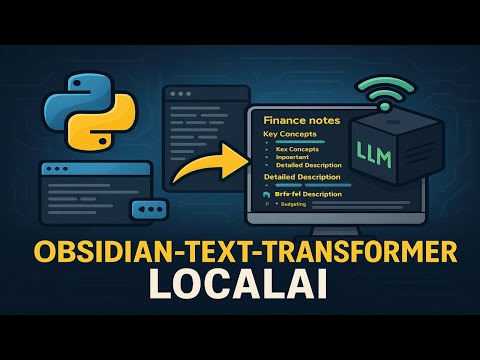
The Obsidian-Text-Transformer-LocalAI is a Python tool designed to transform .txt and .md files into beautifully structured Markdown files, perfectly suited for use in Obsidian. It utilizes local Large Language Models (LLMs) through the Ollama API, enhancing and organizing your notes effectively.

- Ollama API Integration: Uses various LLM models to process content.
- Customizable Prompts: Use
prompts_config.jsonto create custom prompts that do exactly what you want with your files. - Organized Output: Automatically saves processed files in the
OUTPUT_FOLDER.
- Python: Must be installed on your system.
- Ollama: Ensure Ollama is installed and operational. Download Ollama
-
Download and Install Ollama:
- Download Ollama from Ollama's website.
-
Verify Ollama with a Model:
- Open your command line interface (CLI) and run the following command to start a model such as Llama3 or Qwen2:
or
ollama run llama3
ollama run qwen2
- This step is to ensure that Ollama and your chosen model are set up correctly on your system. You only need to do this once to verify that everything is working properly.
- Open your command line interface (CLI) and run the following command to start a model such as Llama3 or Qwen2:
-
Clone the Repository:
git clone https://github.com/Amine-LG/obsidian-text-transformer-localai.git
cd obsidian-text-transformer-localai -
Install Python Dependencies:
pip install requests tabulate
-
Configuration Setup:
config.pyConfiguration:MODEL_API_URL: Specify your active Ollama server address (e.g.,http://localhost:11434/api/chat).MODEL: Select the LLM to use (e.g. 'llama3', 'qwen2').DIRECTORY_PATH: Define the directory containing your input files.OUTPUT_FOLDER: choose where processed files will be stored.- Adjust
MAX_FILE_SIZEandMIN_FILE_SIZEas needed.
- Create
prompts_config.json:{ "messages": [ {"role": "system", "content": [{"text": "Your system prompt here"}]}, {"role": "user", "content": [{"text": "Your user prompt here"}]}, {"role": "assistant", "content": [{"text": "Your assistant prompt here"}]} ] }
-
Model Settings:
MODEL = 'llama3'  # Specify the model used
TEMPERATURE = 0.0  # Set the model's response variability
-
API and File Settings:
MODEL_API_URL = 'http://localhost:11434/api/chat'
MAX_FILE_SIZE = 20000
MIN_FILE_SIZE = 10
DIRECTORY_PATH = r'D:\Files\Notes\root'
OUTPUT_FOLDER = r'D:\Files\Notes\Obsidian_Enhanced'
-
Logging Configuration:
LOG_DIRECTORY = 'logs'
PROCESS_LOG_FILE = 'process_log.txt'
ERROR_LOG_FILE = 'process_errors_log.txt'
- Prepare your
prompts_config.jsonand ensure it is configured according to your needs. - Execution Command:
The script will:
python main.py
- Initialize logging.
- Categorize
.txtand.mdfiles fromDIRECTORY_PATH. - Display file eligibility based on size constraints.
- Process files using the configured prompts.
- Store processed content in
OUTPUT_FOLDER.
- Processed Files: Stored in
OUTPUT_FOLDER. - Logs: Available in the
logsdirectory.
- Output Folder Warning: The script will delete everything in
OUTPUT_FOLDEReach time it runs. Always back up important files first. - Check the Server: Make sure the Ollama server is active by visiting http://localhost:11434/. You should see "Ollama is running."
- Model Options: Explore the Ollama Model Library to select models you’d like to use.
- Write Your Own Prompts: Customize
prompts_config.jsonto create prompts that do exactly what you need.
This project is released under the MIT License.