“A new star has lit up in the sky... one that will shine brightly and guide us forever.”
This repository is dedicated to the memory of its creator and owner, Marcel Pater. Thank you, Marcel, for your passion, your dedication, and for sharing your light with the world. You will always be remembered.
His work lives on, and this project continues to be maintained in his honor.
Cunning Document Scanner is a Flutter-based document scanner application that enables you to capture images of paper documents and convert them into digital files effortlessly. This application is designed to run on Android and iOS devices with minimum API levels of 21 and 13, respectively.
- Fast and easy document scanning.
- Conversion of document images into digital files, including direct PDF export.
- Support for both Android and iOS platforms.
- Minimum requirements: API 21 on Android, iOS 13 on iOS.
- Limit the number of scanned pages on both platforms.
- Import images from the gallery on both platforms, with manual cropping.
- No third-party runtime dependencies.
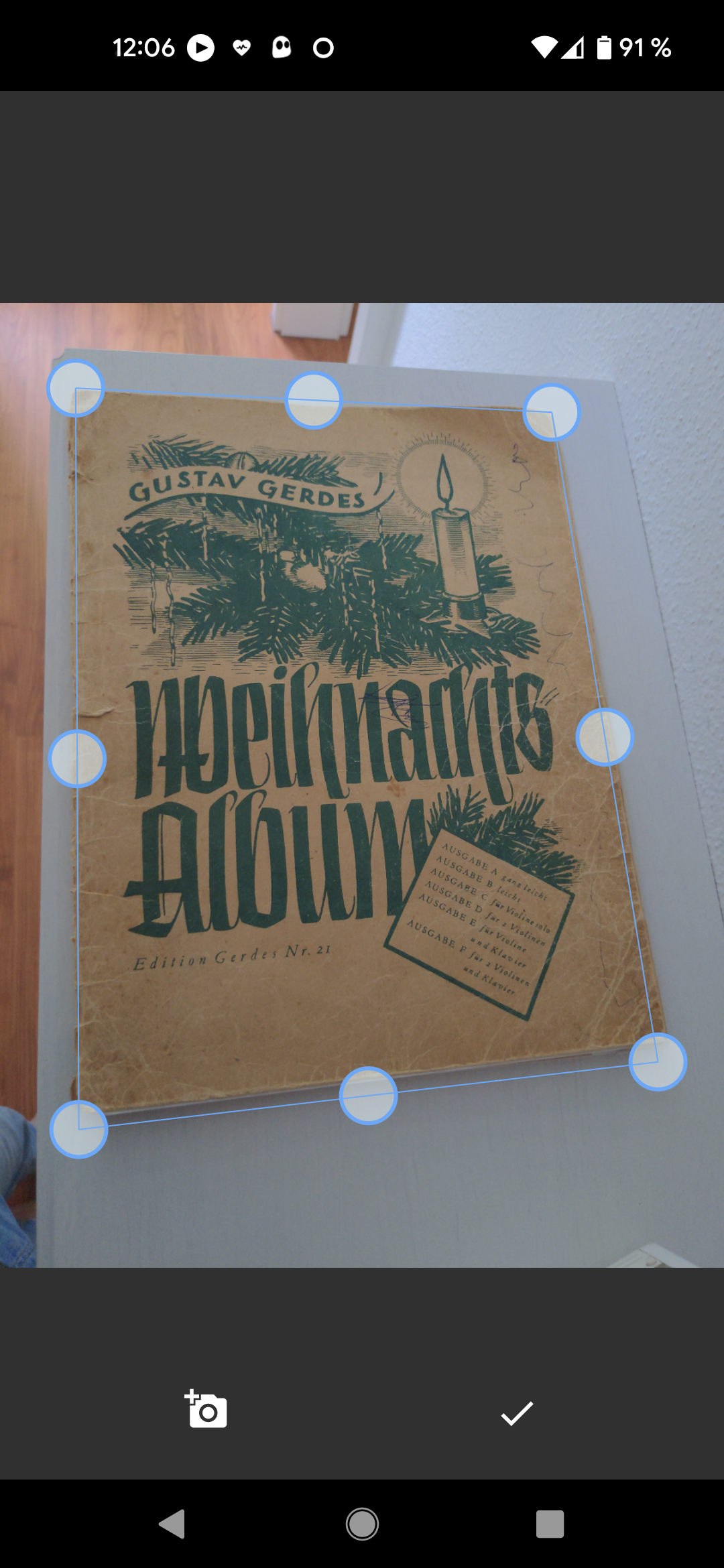
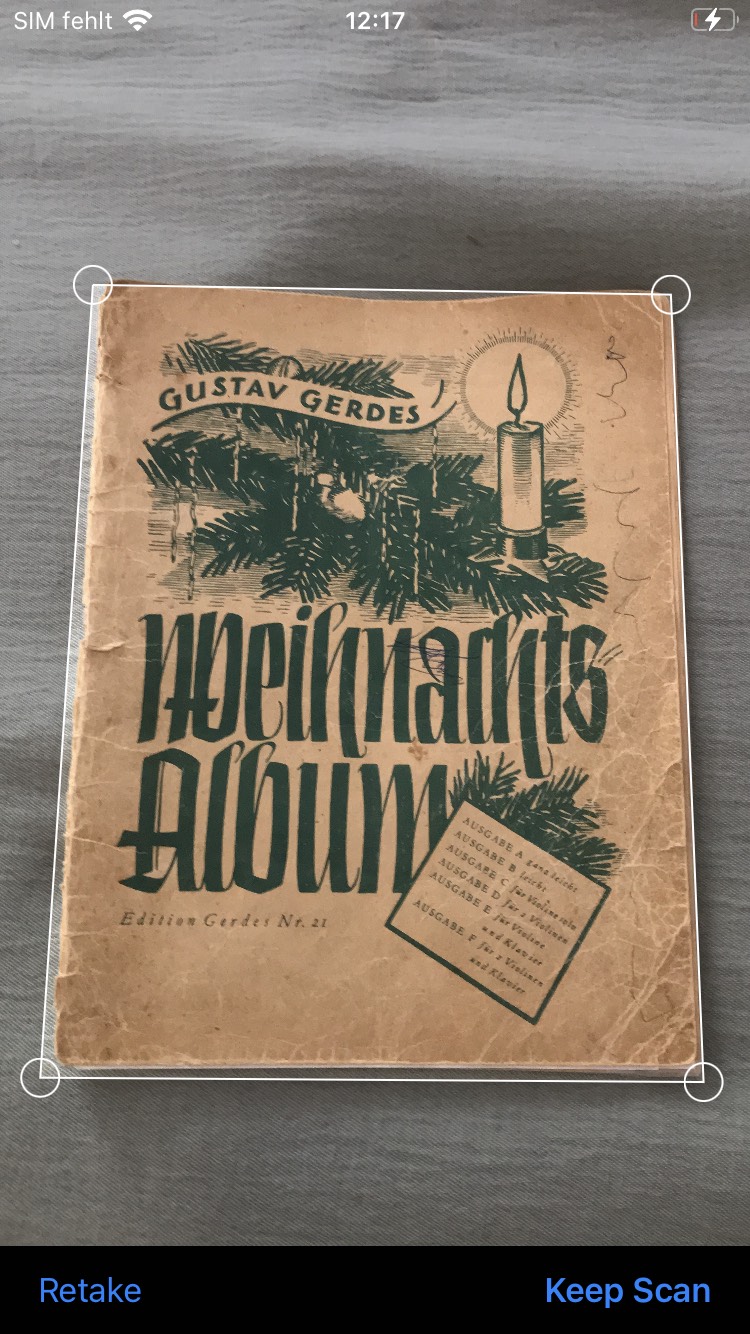
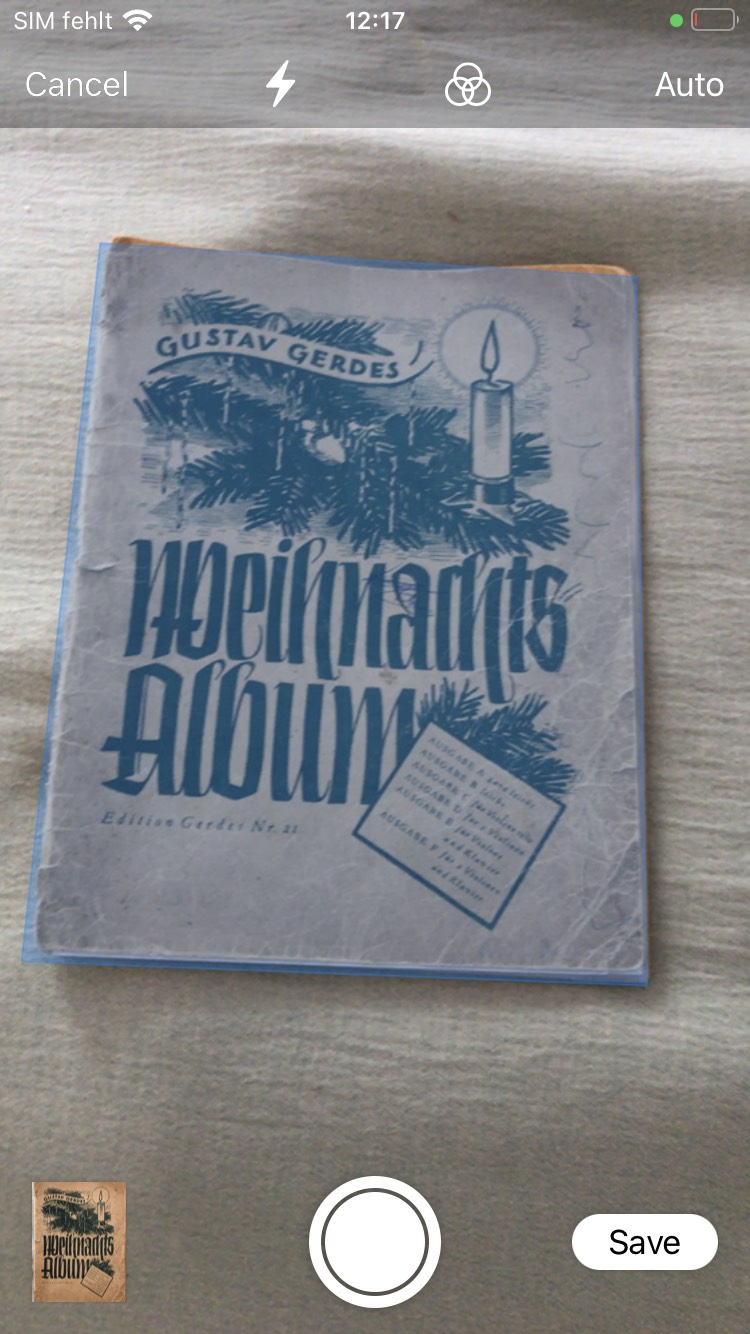
A state of the art document scanner with automatic cropping function.
Note
Automatic edge detection is provided by ML Kit on Android and by Vision on iOS. On Android devices without Google Play Services the plugin falls back to a built-in scanner where the crop area starts as a fixed rectangle and is positioned by the user.
Follow the steps below to set up your Flutter project on Android and iOS.
Ensure you meet the minimum version requirements to run the application on Android devices.
In android/app/build.gradle, verify that minSdkVersion (or minSdk) is at least 21:
android {
    ...
    defaultConfig {
        ...
        minSdkVersion 21
        ...
    }
}Ensure camera permission is declared in your app's android/app/src/main/AndroidManifest.xml:
<uses-permission android:name="android.permission.CAMERA"/>Ensure you meet the minimum version requirements to run the application on iOS devices:
-
Set the iOS Deployment Target in Xcode (under Minimum Deployments) to at least 13.0.
-
If your project still uses CocoaPods, make sure the platform version is at least 13.0 in your
ios/Podfile:platform :ios, '13.0'
Add the NSCameraUsageDescription key to your app's ios/Runner/Info.plist file with a description of why your app needs camera access:
<key>NSCameraUsageDescription</key>
<string>Access to the camera is required to scan documents.</string>
Important
This key is mandatory. iOS terminates any app that requests camera access without it.
Note
The plugin requests the camera permission itself, through AVCaptureDevice, and carries no permission dependency — there is nothing to add to your pubspec.yaml and no preprocessor macro to configure in your Podfile. The permission is only requested when the flow actually opens the camera: ScannerSource.gallery uses the system photo picker and prompts for nothing.
To ensure native iOS UI components (like the document camera, photo library picker, and our source selection menu) are displayed in the user's preferred language (e.g., Spanish), you can enable mixed localizations in your app's ios/Runner/Info.plist:
<key>CFBundleAllowMixedLocalizations</key>
<true/>
Alternatively, you can add the supported languages to the Localizations list in Xcode:
- Open
ios/Runner.xcworkspacein Xcode. - Select the
Runnerproject in the left project navigator. - In the Info tab, under the Localizations section, click the
+button and add the languages your app supports.
If one of these configurations is applied, iOS will automatically load the plugin's built-in translations (supporting 31 languages, including Catalan, Basque and Galician) and translate the system document camera UI to the device's system language. Otherwise, iOS will default all system and plugin UI strings to English.
The easiest way to get a list of images is:
final imagesPath = await CunningDocumentScanner.getPictures();getPictures() returns null when the user cancels, on every platform.
The returned paths point to files in a plugin-owned cache directory (Library/Caches/cunning_document_scanner/ on iOS, the app cache and pictures directories on Android). They are not backed up and the system may reclaim them. Copy anything you need to keep to your own storage.
Call cleanCache() to remove them yourself. It only deletes files this plugin wrote — your application's own images and PDFs are never touched:
await CunningDocumentScanner.cleanCache();The plugin throws standard Dart exceptions when invalid parameters are supplied or permissions are denied:
ArgumentError: Thrown ifnoOfPagesis less than or equal to0, or ifjpgCompressionQualityis outside0.0-1.0.CunningDocumentScannerException: Thrown if camera permission is denied by the user, or if a native scanning error occurs. The native error code is available ase.code(for exampleALREADY_ACTIVE,NO_ACTIVITY,UNAVAILABLE).
try {
  final pictures = await CunningDocumentScanner.getPictures(noOfPages: 5);
} on ArgumentError catch (e) {
  print("Invalid argument: $e");
} on CunningDocumentScannerException catch (e) {
  print("Scanner error [${e.code}]: ${e.message}");
}You can also scan directly to a single PDF document. If asPdf is set to true, the method returns a list containing a single file path pointing to the generated PDF:
   final pdfPath = await CunningDocumentScanner.getPictures(
      asPdf: true,
   );
// pdfPath will be something like: ['/path/to/document.pdf']Configure where images are acquired from using the scannerSource parameter:
- Camera only (Default): Opens the camera directly.
- Gallery only: Opens the system photo gallery directly.
- Camera and Gallery: Opens a selection menu (iOS) or shows a gallery shortcut (Android) letting the user choose.
   final imagesPath = await CunningDocumentScanner.getPictures(
      scannerSource: ScannerSource.cameraAndGallery,
);There are some features in Android that allow you to adjust the scanner that will be ignored in iOS:
   final imagesPath = await CunningDocumentScanner.getPictures(
      noOfPages: 1, // Limit the number of pages to 1
      androidScannerMode: AndroidScannerMode.base, // Use ML Kit base mode on Android (Optional)
   );
Note
noOfPages is enforced while scanning on Android and in the iOS photo picker, so the user cannot go over the limit. The iOS document camera exposes no page limit, so any extra pages are discarded after scanning without notifying the user.
On iOS it is possible to configure which image format should be used to save of the document scans. Available options are PNG (default) or JPEG. In certain situations the JPEG format could drastically reduce the file size of the final scan. If you choose to use JPEG you can also specify a compression quality, where 0.0 is highest compression (lowest quality) and 1.0 (default) is the lowest compression (highest quality). Example usage is:
   // Returns images in JPEG format with a compression quality of 50%.
   final imagesPath = await CunningDocumentScanner.getPictures(
      iosScannerOptions: IosScannerOptions(
         imageFormat: IosImageFormat.jpg,
         jpgCompressionQuality: 0.5,
      ),
);Images imported from the gallery go through the plugin's own cropper, which offers Original, Color, Grayscale and B&W filters. You can preselect one, and hide the selector entirely if you want a crop-only flow:
   final imagesPath = await CunningDocumentScanner.getPictures(
      scannerSource: ScannerSource.gallery,
      iosScannerOptions: IosScannerOptions(
         defaultFilter: IosDocumentFilter.blackAndWhite,
         showFilterBar: false, // every page keeps defaultFilter
      ),
   );
Note
These options only affect the plugin's cropper. The system document camera (VNDocumentCameraViewController) applies its own processing and VisionKit exposes no scanner mode or filter toggle for it.
The plugin's native UI reads its text and colors from named resources, and it looks in your application before its own. Redeclaring a name in your app therefore overrides it — no fork and no configuration.
Declare any of the plugin's resources in your own android/app/src/main/res/. Android merges a library's resources into the application's, and the application wins, so your value is the one that ships.
<!-- android/app/src/main/res/values/colors.xml -->
<resources>
    <color name="cunning_black">#101820</color>                          <!-- cropper background -->
    <color name="cunning_done_button_inner_circle_color">#FFD166</color> <!-- confirm button -->
    <color name="cunning_page_progress_label_text">#FFFFFF</color>
    <color name="cunning_page_progress_label_background">#99000000</color>
</resources>
<!-- android/app/src/main/res/values-es/strings.xml -->
<resources>
<string name="cunning_crop_page_progress">Ajusta el documento (%1$d/%2$d)</string>
</resources>The same works for every cunning_-prefixed dimension, so button sizes and paddings can be adjusted too. Keep the positional specifiers (%1$d, %2$d) in any string that has them.
Declare the plugin's key in your app's Localizable.strings. The plugin resolves each key against the main bundle first and falls back to its own translations only when your app does not define it:
/* ios/Runner/es.lproj/Localizable.strings */
"cunning_document_scanner_crop_title" = "Ajusta el documento (%1$d/%2$d)";
"cunning_document_scanner_camera" = "Hacer foto";
"cunning_document_scanner_gallery" = "Elegir de la galería";
The available keys are camera, gallery, cancel, crop_title, discard_title, discard_message, discard, filter_original, filter_color, filter_grayscale and filter_bw, each prefixed with cunning_document_scanner_. See en.lproj/Localizable.strings for the full list.
Note
Colors on iOS are currently hard-coded in Swift and cannot be overridden this way. Only text is customizable on that platform.
Add cunning_document_scanner as a dependency in your pubspec.yaml file:
dependencies:
  cunning_document_scanner: ^3.0.0
Or run:
flutter pub add cunning_document_scannerIf you want to contribute to this plugin or run the example app locally:
-
Clone this repository:
git clone https://github.com/jachzen/cunning_document_scanner.git
-
Navigate to the example directory:
cd cunning_document_scanner/example -
Install dependencies:
flutter pub get
-
Run the application:
flutter run
These rules exist because a Flutter plugin's native resources do not live in a namespace of their own — they are merged into whatever application installs the plugin.
Every resource must start with cunning_. This covers strings, colors, dimens, integers, styles, view IDs, and the file names of layouts, drawables, animators and XML resources.
<!-- Correct -->
<string name="cunning_crop_page_progress">Crop Page %1$d of %2$d</string>
<color name="cunning_black">#000000</color>

<!-- Wrong: collides with the host application -->
<string name="crop_page_progress">Crop Page %1$d of %2$d</string>
<color name="black">#000000</color>
The reason is that Android merges a library's resources into the application's resource table, and on a name collision the application's value wins. An app declaring something as ordinary as <color name="black"> would silently restyle this plugin's scanner. The rule is enforced by resourcePrefix = "cunning_" in android/build.gradle.kts, so AGP flags any resource that forgets it.
The prefix is what turns that hazard into the deliberate extension point described under Customization: names are unlikely to be hit by accident, but an application that redeclares one on purpose gets exactly the override it asked for. Treat every cunning_-prefixed resource name as public API and rename it only in a major release.
Framework attributes inside a style (<item name="android:windowFullscreen">) are attribute references, not resources, and are left alone.
Keys in Localizable.strings are prefixed cunning_document_scanner_, for the same reason: the plugin looks the key up in the host application's main bundle first, so that an app can override any string it wants, and only falls back to its own bundle.
"cunning_document_scanner_crop_title" = "Crop Page %1$d of %2$d";
Both platforms ship the same 31 languages and are expected to stay in step:
- Add the key to
ios/.../Resources/en.lproj/Localizable.stringsand to all the other*.lprojfiles. - Add the matching
cunning_-prefixed string toandroid/src/main/res/values/strings.xmland to all thevalues-*/strings.xmlfiles. - Use positional format specifiers (
%1$d,%2$d) so both platforms can share the same wording, and so translators can reorder them.
Android resolves the language from the device automatically. iOS requires the host application to opt in, as described in the Localization Configuration section above.
Hebrew and Indonesian use the legacy Android qualifiers values-iw and values-in, and Chinese uses BCP47 script tags (values-b+zh+Hans, values-b+zh+Hant) so the variant is chosen by script rather than by country.
Contributions are welcome. If you want to contribute to the development of Cunning Document Scanner, follow these steps:
- Fork the repository.
- Create a branch for your contribution:
git checkout -b your_feature - Make your changes and commit:
git commit -m 'Add a new feature' - Push the branch:
git push origin your_feature - Open a pull request on GitHub.
If you encounter any issues or have questions, please open an issue. We're here to help.
This project is licensed under the MIT License. See the LICENSE file for more details.